
Brother QL-820NWB
4.3Editor score
Multiple wired and wireless interfaces
110 labels per minute
Standalone monochrome display
A label printer for library can transform shelving, circulation, media management, equipment tracking, and signage by producing consistent labels at the point of need. The right model balances speed, print clarity, compatible media, connectivity, and the size of the labels required for daily operations.
We compared ten label printers using their supplied specifications, focusing on practical library needs rather than generic features. The list includes desktop thermal printers, handheld Bluetooth models, and compact label makers designed for text, barcodes, QR codes, asset records, and visual identification.
Each pick highlights the most relevant strengths and limitations for library work, showing which option suits different collections, staffing levels, and labeling volumes. Product prices and availability can change, so compare current listings, accessories, and label compatibility before making a final purchase.
4.3Editor score

4.5Editor score

4.4Editor score
As an Amazon Associate we earn from qualifying purchases.
The comparison below highlights each printer's core format, connection options, speed, and media capabilities so library staff can quickly identify the model that matches their cataloging, shelving, and signage workflows.


The Brother P-Touch PT-D610BT is a versatile connected label maker that combines an approachable QWERTY interface with useful wireless and computer-based workflows. Its 4.5 rating reflects a well-rounded feature set, and the full-color, two-line screen gives it an unusual advantage: staff can inspect a label before committing a cartridge to print. For a library, that preview can help reduce mistakes when producing shelf markers, media identifiers, equipment tags, and personalized collection labels.
We may earn a commission when you buy through this link, at no additional cost to you.
Its creative tools are particularly relevant to institutions that need more than plain call-number text. The listed design options include 17 fonts, 17 styles, 160 frames, and 900 symbols, while 175 preloaded business templates support asset management and inventory tracking. Bluetooth and USB allow staff to design from computers or mobile devices, and built-in memory can retain up to 90 frequently used labels for quick reproduction. An automatic cutter helps keep individual labels clean and ready to apply.
The principal limitation is scale. This is a label maker rather than a production desktop printer, and its one-inch maximum width may not accommodate the largest signage or standard address-label formats. The product data does not establish a maximum print speed, so it would be unwise to position it as the choice for unattended batches of hundreds or thousands of labels. A library that mostly identifies media, assets, containers, and personal materials may find that workflow perfectly sufficient.
Overall, the PT-D610BT is a strong all-around recommendation for a single collection, small public library, school library, media department, or staff workspace that values design flexibility, previews, saved formats, and flexible connectivity. Choose it when a clean handheld workflow is as important as polished professional output. For heavier duty, the QL-820NWB and QL-810W are better suited to sustained label runs.
The large color display is particularly useful for checking alignment, hierarchy, and barcode placement before printing. Combined with the broad font, frame, and symbol selection, it supports labels that are easier for patrons and staff to recognize.
Storing up to 90 labels and using business-specific templates can make recurring tasks less repetitive. This is especially helpful for asset tracking, media inventories, and repeated shelving or storage labels.
We may earn a commission when you buy through this link, at no additional cost to you.
The Brother QL-820NWB is the most capable premium choice in this guide for libraries that print large quantities of address, media, equipment, and routing labels. Its 4.3 rating and professional positioning are backed by a listed speed of up to 110 standard address labels per minute at 300 dpi. The printer also supports labels up to three feet long, giving it more flexibility for banners, directional signs, and specialized identification than a conventional compact label maker.
We may earn a commission when you buy through this link, at no additional cost to you.
Connectivity is its defining strength. Bluetooth, Ethernet, and 802.11b/g/n Wi-Fi cover everything from a local USB-host workflow to a shared network installation. A USB host interface can accommodate a peripheral such as a scanner, potentially reducing friction in workflows that pull item data before printing. The monochrome LCD permits standalone use, allowing a staff member to operate the machine without relying entirely on a nearby computer.
The main compromises concern visibility and infrastructure. The screen is monochrome, whereas the PT-D610BT offers a larger full-color preview. Wi-Fi and Ethernet also require more deliberate setup than a basic USB connection, which may make this model less attractive for a small staff area that needs a printer immediately and without network administration. Although black-and-red output is available with the specified DK 2251 media, the device itself remains a monochrome label printer.
This is the recommended option for a busy public library, large school library, archive, or multi-department institution. It particularly suits administrators who want shared access, flexible connection methods, and fast production. Choose the QL-820NWB when throughput and network flexibility matter more than handheld simplicity; choose a smaller model when the library primarily produces short, occasional labels.
A listed rate of 110 standard address labels per minute makes the QL-820NWB well suited to bulk processing, backlogs, and new acquisitions. The 300 dpi output is intended to keep text and codes clear during demanding runs.
Bluetooth, Ethernet, and Wi-Fi let administrators place the printer in the workflow that makes sense. Shared wireless access is especially convenient for decentralized cataloging, technical processing, or media departments.
We may earn a commission when you buy through this link, at no additional cost to you.
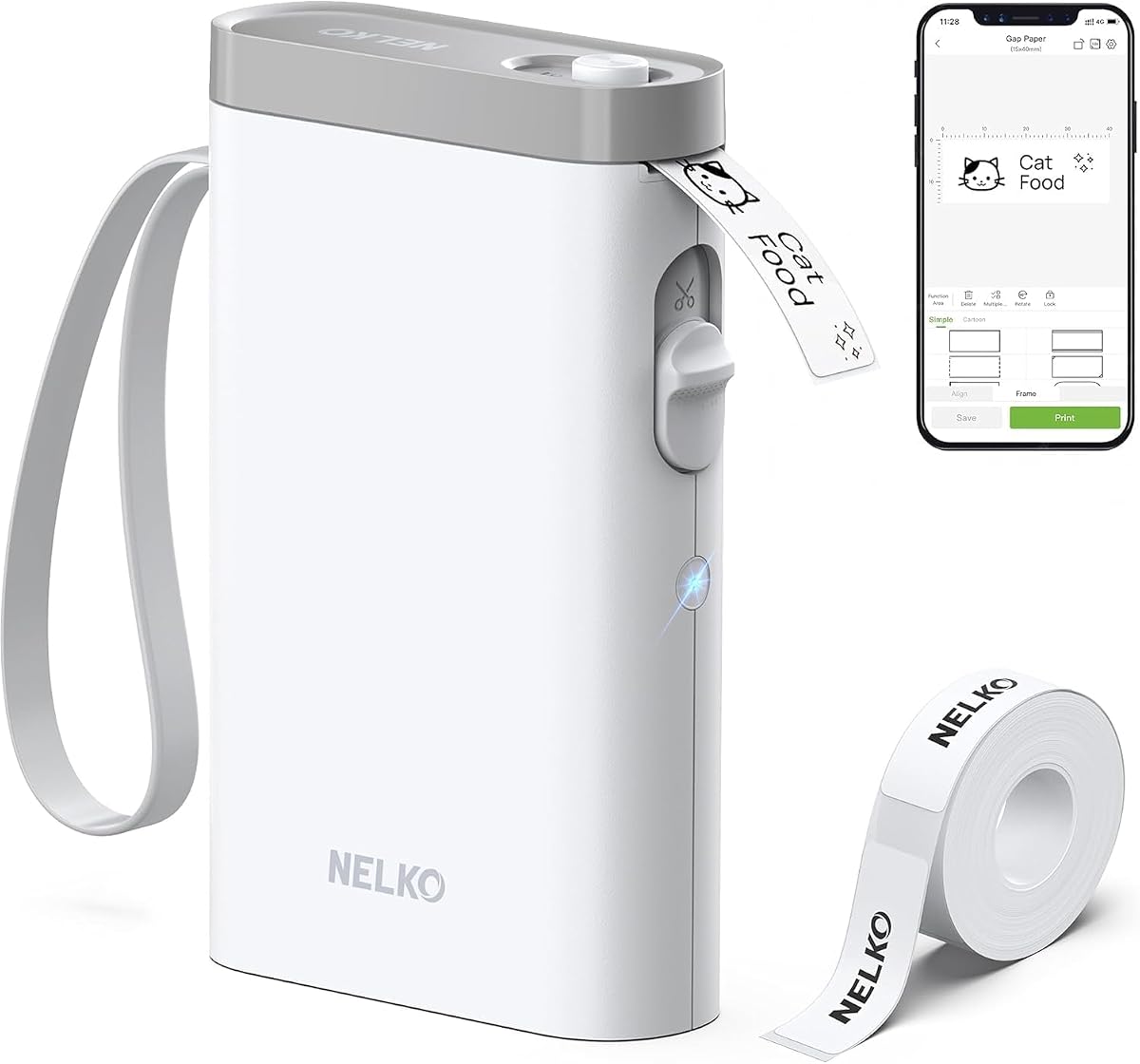
The Nelko P21 is a compact Bluetooth label maker aimed at mobile, classroom, and small-team workflows. It carries a 4.4 rating and emphasizes portability, direct thermal printing, and creative app-based design. For librarians working away from a fixed desk, the ability to carry the device in a pocket and print at shelves, storage areas, or community events is a meaningful operational advantage.
We may earn a commission when you buy through this link, at no additional cost to you.
The companion app offers a substantial creative library, including more than 3,600 icons, 700 borders, 5,500 materials, and 750 templates across 29 languages. Labels can include text, QR codes, barcodes, images, time information, and decorative borders. Print output is monochrome at 203 dpi, while color-pattern tapes can create colored backgrounds. A built-in rechargeable battery supports extended use without ink or toner.
Several limitations make it less suitable as a central library production printer. The device does not work with computers, continuous label tapes are unsupported, and label length is fixed to specified formats such as 14 by 40 millimeters, 14 by 50 millimeters, and 14 by 75 millimeters. The product information also states that it is not compatible with Google Pixel phones running Android 14 and notes that iOS users need the latest app version.
Despite those boundaries, the P21 is a convincing choice for small libraries, outreach programs, classroom collections, children's departments, and staff who need attractive labels away from a computer. It is less convincing for high-volume technical processing or institutions requiring a standardized desktop workflow. For those situations, one of the Brother desktop models would offer more predictable integration.
The large collection of icons, borders, materials, and templates gives the P21 more visual flexibility than a plain text-only device. That makes it well suited to learner-focused labels, media markers, and friendly shelf identification.
The rechargeable battery and pocket-sized form factor support work away from a workstation. Thermal operation removes the need for ink or toner, simplifying preparation for mobile labeling sessions.
We may earn a commission when you buy through this link, at no additional cost to you.
The Brother PT-M95 is a straightforward monochrome label maker that avoids the learning curve of app-based or network printing. It has a 4.5 rating, a QWERTY keyboard, an easy-view display, and a portable design intended for home and home-office use. Those qualities translate well to a small library or personal collection where staff need quick labels without configuring software or keeping a computer nearby.
We may earn a commission when you buy through this link, at no additional cost to you.
The device supports one or two lines of text and includes eight Deco Mode patterns, along with a selection of type styles, frames, and symbols. The bundle contains one sample of black-on-white tape and three full-length black-on-white tapes. Genuine Brother M tapes are available in 9-millimeter and 12-millimeter widths and a range of colors, offering some flexibility beyond the included monochrome media.
The trade-off is obvious when compared with connected models. No Bluetooth, Wi-Fi, or computer workflow is listed, so labels must be composed on the built-in keyboard. Two-line text also makes it less suitable for long call numbers, detailed asset descriptions, or dense identification. It is a label maker for simple, compact labels rather than high-speed production.
The PT-M95 is best for a small school library, personal academic collection, reading-room project, or staff member who values dependable simplicity. Its included media makes it a complete starting package. Those who need barcodes, network sharing, larger signs, or database-driven label creation should choose a more connected model.
Typing on the QWERTY keyboard and checking the display makes the PT-M95 approachable even for occasional users. It avoids app updates, pairing steps, and computer-driver setup, which can be valuable in a small or mobile workspace.
Four black-on-white tapes allow immediate use after purchase. Additional M tapes in the supported widths and colors can extend the device for classroom, office, or personal collection organization.
We may earn a commission when you buy through this link, at no additional cost to you.
The Brother QL-810W is a production-focused desktop printer for libraries that need fast standard labels and wireless placement. Its 4.2 rating does not obscure the core appeal: the listed maximum of 110 standard address labels per minute at 300 dpi. It can create cost-effective paper labels for packages, envelopes, file folders, name badges, postage, and similar items.
We may earn a commission when you buy through this link, at no additional cost to you.
USB and Wi-Fi create more deployment options than a basic USB-only desktop model. The supplied information also notes support for AirPrint, Brother iPrint & Label, and mobile printing over a wireless network. Black-and-red output is possible with DK 2251 media, which can make warnings, priority markers, and special routing labels more noticeable than monochrome alone.
Its limitations are centered on network scope and platform currency. Ethernet is not listed among the interfaces, so a wired shared network may not be possible through the stated connections. The operating-system compatibility list includes several older Windows and Mac versions, and buyers should verify that their current equipment is supported before purchasing.
For a modern library with reliable Wi-Fi and frequent address or media-label runs, the QL-810W offers a strong balance of speed and flexibility. It is a better fit for processing rooms or shared technical services than for personal collection labeling. Institutions needing more connection types may prefer the QL-820NWB, while smaller libraries can consider the Seiko model for a simpler desktop setup.
USB supports direct computer workflows, while Wi-Fi allows printers to be shared or used from mobile devices. That flexibility can improve label production across separate cataloging and media-processing stations.
The stated speed and 300 dpi output target routine address-label workloads efficiently. Black-and-red capability adds a visual layer for warnings, routing, and priority handling.
We may earn a commission when you buy through this link, at no additional cost to you.
The SUPVAN T50M Pro is a flexible app-driven label maker for institutions that want more design control than a simple standalone keyboard provides. Its 4.5 rating is supported by a feature set that covers library shelving, media identification, staff supplies, QR codes, barcodes, logos, and general small-business labeling.
We may earn a commission when you buy through this link, at no additional cost to you.
The editing app can add images from a phone, tablet, or computer and provides more than 30 fonts, 50 frames, and 660 icons without registration. Automatic label size recognition reduces setup time, while enhanced image processing is intended to produce clearer graphics. Printed media ranges from 3/4-inch to 2-inch widths and supports square, round, address, cable, jewelry, and file labels.
The primary concern is that the supplied information does not state a maximum print speed. This makes it difficult to compare its throughput confidently with the Brother desktop printers. A library that needs rapid batch production should verify real-world workflow requirements rather than assuming that app features translate into faster output.
The T50M Pro is a good fit for small libraries, makerspaces, creative departments, and staff who work across phone, tablet, or PC. It is particularly attractive when visual customization and varied media shapes matter. For routine high-volume address labels, the QL-810W or QL-820NWB provides more explicit throughput information.
Supporting phone, tablet, and PC editing lets staff create labels from whichever device is most convenient. A free app without registration can also reduce onboarding friction for temporary or volunteer workers.
Support for different shapes and widths makes the printer useful beyond standard shelf strips. File, cable, round, square, address, and jewelry labels provide useful options for practical library assets.
We may earn a commission when you buy through this link, at no additional cost to you.
The Brother QL-800 is a high-speed USB thermal printer designed for professional labeling in offices, shipping operations, and institutional back rooms. Its 4.3 rating accompanies a listed output of up to 93 labels per minute at 300 dpi. For a library, that performance is relevant when staff need to process media, folders, badges, or other large batches of consistently sized labels.
We may earn a commission when you buy through this link, at no additional cost to you.
Its Plug & Label technology is one of the most useful library-facing details. The supplied information says it enables printing from Microsoft Word, Excel, and Outlook without additional software installation, and the printer is compatible with Windows and Mac. That can simplify workflows involving spreadsheets, accession records, donor lists, or standard office documents. An automatic cutter and support for Brother DK pre-sized labels or continuous tape up to three feet add further production flexibility.
Unlike the QL-810W and QL-820NWB, the listed feature set emphasizes USB and direct computer integration rather than wireless or network sharing. That is a limitation for distributed staff, but it can also be an advantage at a single fixed processing station because fewer network settings are involved. The device is monochrome, although it can print both black and red with compatible media.
This printer makes sense for a library with a dedicated technical-processing desk and a need for fast, repeatable output. It is less appropriate for roaming signage, shared wireless printing, or a casual user who wants a handheld device. The PT-D610BT and newer app-based models are better for flexible design work, while the QL-800 prioritizes volume and office-document integration.
Printing from familiar Microsoft applications can shorten the path from library data to a finished label. This is especially useful for staff who already maintain spreadsheets and other cataloging or administrative records.
The automatic cutter, pre-sized label support, and continuous tape option simplify different output tasks. These features make one printer useful for records, badges, folders, and longer identification labels.
We may earn a commission when you buy through this link, at no additional cost to you.
The NIIMBOT B1 is a compact two-inch Bluetooth label printer that offers a practical middle ground between a small handheld maker and a desktop production unit. It has a 4.3 rating, supports iOS and Android through its app, and can also connect to a PC by USB when the appropriate driver is installed. Its two-inch format is broad enough for more prominent shelf and media identification than a narrow tape-only device.
We may earn a commission when you buy through this link, at no additional cost to you.
The app automatically detects label size, provides more than 30 fonts and 100 borders, and includes more than 1,500 symbols. Users can save templates for one-tap reprinting, which is useful for recurring collection labels, office supplies, and item identification. Thermal printing requires no ink or toner, while a built-in rechargeable battery and automatic shutdown after 15 minutes help conserve energy.
Compatibility details deserve attention. The product information says the B1 is not compatible with tablets, and it instructs buyers to charge the device immediately before turning it on for testing. These are not major flaws for a carefully planned workflow, but they may frustrate a buyer expecting completely universal mobile support.
The B1 is a good option for small libraries, reading rooms, classroom libraries, and staff who need portable labels with a relatively broad width. It can serve personal collection organizers and home-office users as well. For shared institutional production or large address-label batches, a wired Brother desktop printer provides clearer throughput guidance and broader fixed-workstation integration.
The wider format creates more room for shelf names, media categories, and prominent identifiers. Compact construction keeps the device manageable for staff who move between work areas.
Saving designs for one-tap reuse reduces repetitive work. Templates are useful for recurring labels whose text or graphics change only slightly, such as a collection logo, date, or shelving category.
We may earn a commission when you buy through this link, at no additional cost to you.
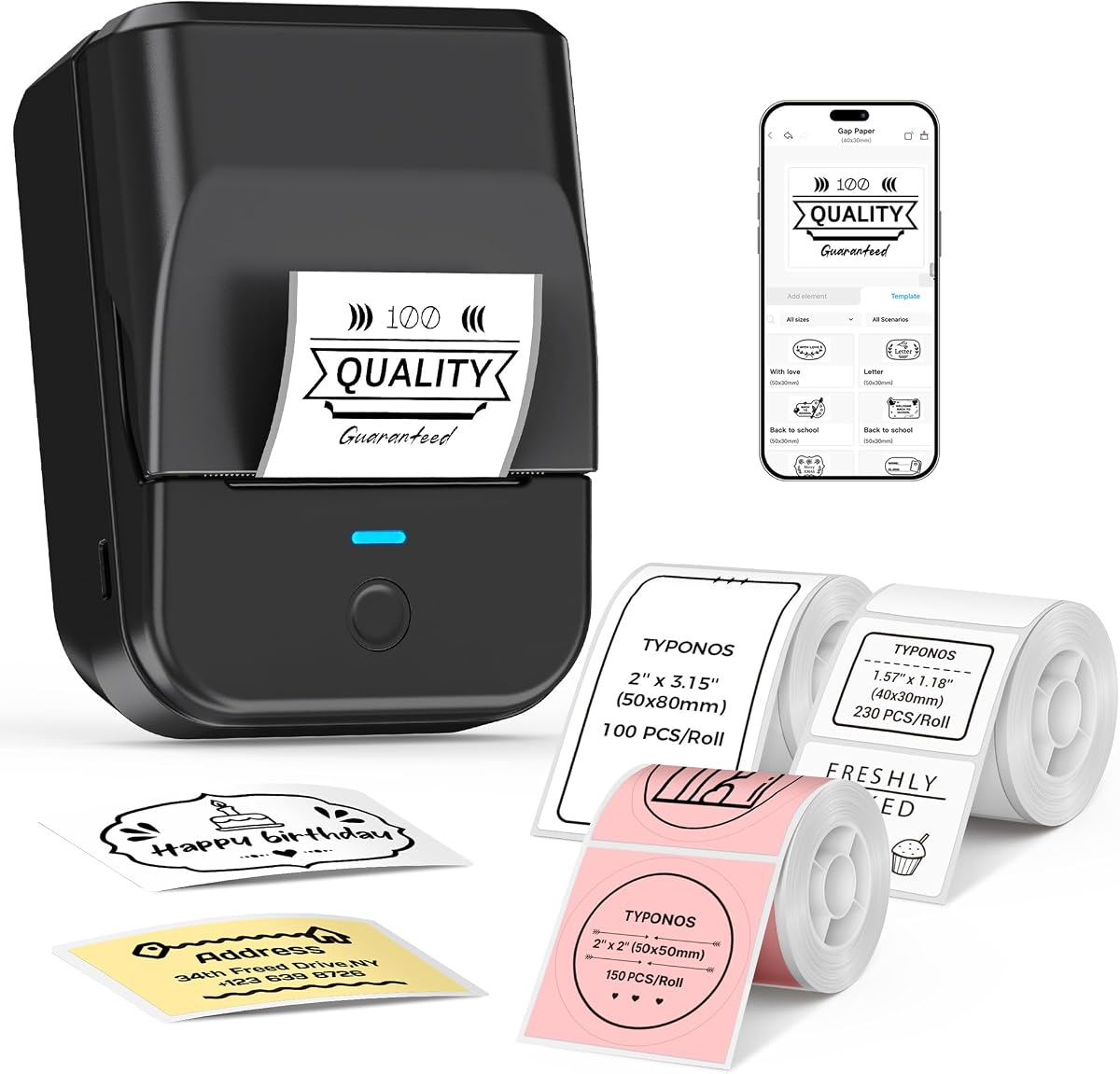
The PM240 combines portable design with an unusually broad set of app features, earning a place as a versatile choice for schools, small libraries, and collection organizers. It has a 4.4 rating, 203 dpi monochrome printing, and a built-in 1500mAh rechargeable battery. At 207 grams, the device is light enough to carry between rooms or work areas.
We may earn a commission when you buy through this link, at no additional cost to you.
Its Labelnize app includes more than 2,500 icons, 3,800 templates, and 430 fonts, along with Excel import, batch printing, AI text-to-image, and optical character recognition. Compatible RFID-equipped TYPONOS labels allow automatic size detection. The bundle includes rectangular labels measuring 40 by 30 millimeters and 50 by 80 millimeters, plus 50-millimeter pink round labels.
The device supports Bluetooth connections to phones and tablets and USB operation with a PC, although Bluetooth and USB cannot be used simultaneously. Output is monochrome only, and the power adapter is not included. Users should also avoid removing the green liner sticker because doing so may interfere with printing.
The PM240 is recommended for teachers, librarians, and small-business operators who need one portable device for a variety of label shapes. Its batch-printing and Excel support are especially attractive for inventory work. Libraries requiring larger formats, network sharing, or high-speed production should look toward the Brother desktop range instead.
Excel import and batch printing can streamline repetitive inventory tasks. OCR and text-to-image features add further flexibility, while automatic size detection helps reduce setup errors.
The included rectangular and round formats demonstrate the device's versatility. Additional compatible square, round, and transparent labels make it suitable for jars, bins, classroom items, and other varied assets.
We may earn a commission when you buy through this link, at no additional cost to you.
The Seiko Smart Label Printer 620 is an approachable desktop printer for a library that needs consistent paper labels without the complexity of a full production system. Its 4.4 rating is supported by a stated speed of 2.76 inches per second and support for 2.28-inch labels. The listed product information positions it as a fast, affordable option for address, shipping, file-folder, multipurpose, and name-badge labels.
We may earn a commission when you buy through this link, at no additional cost to you.
A front-loading design simplifies media changes: staff can drop in a new roll rather than threading a mechanism through the back. The included software is designed to format, customize, and organize labels, while PC and Mac compatibility covers common library workstations. These details make the printer approachable for volunteers and staff who may not encounter label software regularly.
The main limitation is connectivity. No wireless interface is listed, so the printer is best positioned near the computer that manages its labels. The supplied data also does not mention barcode, QR code, color, or advanced template features, making the intended scope less specialized than several app-based alternatives. It is sold as one unit, and no tape quantity is specified in the supplied information.
Despite those constraints, the Seiko model is a sensible value-oriented choice for small libraries, private collections, reading groups, and departments that primarily need file folders, addresses, names, and multipurpose paper labels. It offers a simple desktop alternative to handheld makers. Institutions needing network access or specialized graphic workflows should choose a more connected model.
The front-loading design reduces the steps required to replace a roll. That convenience matters in offices where media changes are frequent or staff turnover is high.
Intuitive software for formatting and organizing labels can make the printer approachable for occasional users. It is a practical choice for common folder, badge, and address-label tasks.
We may earn a commission when you buy through this link, at no additional cost to you.
The best library label printer depends on the kinds of materials being marked, the volume of work, the staff's devices, and whether labels must be created at a desk or while moving through collections. Consider the following factors before choosing a model.
Begin with the dimensions of the labels the library already uses or expects to adopt. Some models support narrow tapes, while others handle standard address labels, wider media, long continuous strips, or multiple shapes. The Seiko Smart Label Printer 620 is described for 2.28-inch labels, the NIIMBOT B1 uses a two-inch format, and the Brother QL-820NWB can print labels up to three feet long. A broad maximum width can be useful for prominent signage, but unnecessary if the library only needs small media identifiers.
Choose a printer that matches your existing media system rather than one that merely sounds versatile. Check the exact width, length, shape, color, and roll format supported by your chosen model, and verify whether the necessary tape is included.
Library needs range from a few personalized labels to thousands of media identifiers during acquisitions or reclassification. Continuous desktop printers provide more explicit throughput information: the Brother QL-820NWB and QL-810W list up to 110 standard address labels per minute, while the QL-800 lists up to 93 labels per minute. The Seiko model lists a speed of 2.76 inches per second. These figures are most relevant when several staff members share one printer or work through recurring backlogs.
For occasional labeling, a compact device may be easier to manage than a high-speed machine. For routine production, select a model with documented speed, automatic cutting, and the media capacity required for your batches.
Consider where labels are designed, where the printer is located, and who needs access. Bluetooth is convenient for mobile and nearby work, USB is dependable at a fixed workstation, and Ethernet or Wi-Fi can support shared access. The Brother QL-820NWB combines Bluetooth, Ethernet, and Wi-Fi, while the QL-810W uses USB and Wi-Fi. The Nelko P21 is phone-only and does not work with computers, so it does not suit a conventional computer-based cataloging workflow.
Map the connection method to the library's real routine. Shared departments benefit from network access, whereas a single station may be best served by reliable USB. Verify operating-system and device compatibility before purchasing.
Text-heavy identification labels need clear characters, while barcodes, QR codes, logos, and small symbols benefit from careful alignment and higher resolution. The Brother PT-D610BT offers a 20-character, two-line full-color display for previewing designs before printing, along with numerous fonts, styles, frames, and symbols. The PM240 adds OCR, text-to-image, and extensive template options. Desktop production models emphasize speed and document integration, while their supplied specifications focus less on visual preview.
For basic call numbers or short text, a simple monochrome model may be enough. For patron-facing labels, media graphics, or complex identifiers, prioritize design controls, previewing, and reliable code output.
The printer should fit the labels the library already owns or can obtain consistently. Genuine or compatible media can affect size detection, print quality, and cutting performance. The Brother PT-M95 includes four black-on-white tapes, the SUPVAN T50M Pro includes three tapes, and the PM240 includes rectangular and round formats. The Brother QL-820NWB, QL-810W, and QL-800 specifically reference DK media, including DK 2251 for black-and-red output.
Check the media requirements before choosing. Using a supported roll reduces loading errors, improves automatic detection, and makes it easier to maintain a consistent library-wide labeling standard.
The easiest printer for one staff member may not be the easiest for volunteers or a changing team. Standalone models such as the PT-M95 use a QWERTY keyboard and display without computer setup. App-based printers provide richer design tools but require compatible devices, current software, and a short learning period. The PT-D610BT combines a built-in interface with computer and mobile connectivity, while desktop Brother models can print directly from familiar office applications.
Choose a balance between capability and training. More features help sophisticated workflows, but they are unnecessary if they create setup barriers. Give volunteers a simplified method and maintain templates for recurring labels.
A portable label maker can reduce trips between a desk and the shelves, archives, or storage rooms. The Nelko P21 is designed to fit in a pocket and uses a built-in rechargeable battery. The NIIMBOT B1 is also compact and rechargeable, while the PM240 weighs 207 grams and includes a 1500mAh battery. These features support mobile outreach, classroom work, and decentralized collection maintenance.
Portable does not automatically mean better. Built-in batteries require charging, and some products have device restrictions or require initial charging before use. For a stationary production room, a wired desktop printer may be more dependable.
Collections that track equipment, media, containers, or special collections may need machine-readable identifiers. The Nelko P21 supports QR codes and barcodes, the SUPVAN T50M Pro supports them in its app, and the PM240 includes them along with Excel import and batch printing. The Brother PT-D610BT provides business and inventory templates that can support asset-management workflows. Barcode scanners and other peripherals can also become relevant when a printer is part of a larger processing system.
Do not choose a printer solely because the listing mentions codes. Confirm the required code format, label dimensions, data workflow, and whether the printer must integrate with collection-management or spreadsheet systems.
Begin by confirming the correct media, loading it according to the supplied instructions, and installing the appropriate editor or driver. App-based models should be paired through the designated application, while USB and network printers should be connected to the intended computer or network. Test a short label and inspect its text, spacing, barcode readability, and cutter position before printing a large batch.
Create a simple labeling standard that specifies fonts, sizes, placement, terminology, and which staff member owns each printer. Save recurring templates, and use the same media format whenever practical. For books and media, apply labels only to surfaces approved by the library's preservation or collection-care policy, and test adhesives on different surfaces before rolling out a new material.
Keep the print path clean and use only supported media and approved cleaning methods. Store rolls in a dry environment, protect them from excessive heat, and avoid leaving a partially used roll where it can collect dust. Fully charge portable devices before important labeling sessions, update the companion app when required, and never remove protective liner stickers unless the manufacturer specifically instructs you to do so.
A small library will usually get the most flexibility from a connected model that can handle both compact media and common desktop labels. The Brother P-Touch PT-D610BT is strong for design, preview, and stored templates, while the Seiko Smart Label Printer 620 is a simpler option for file folders, addresses, and name badges. Consider how many labels staff create each week and whether computer or mobile design is preferred.
Several models in this guide can create barcodes or QR codes through their companion apps. The Nelko P21, SUPVAN T50M Pro, and PM240 explicitly list code support, while the Brother PT-D610BT emphasizes high-resolution barcodes and logos. Print a test code and scan it before using it for circulation or inventory tracking.
A standalone model with a physical keyboard may be easiest for occasional users because it requires no app pairing or driver installation. The Brother PT-M95 follows this approach, whereas app-based devices offer more design options but require a compatible device and software. Saving several templates on a connected printer can also make routine tasks straightforward for volunteers.
Not necessarily. A USB printer is often the simplest and most reliable option when labels are designed on the same computer used to manage the records. Wireless or network connectivity becomes more valuable when the printer is shared, placed away from the workstation, or used with mobile devices. The Brother QL-810W and QL-820NWB provide different levels of remote and shared access.
It depends on the model. The Brother QL-820NWB and QL-800 support continuous media up to three feet long, according to the supplied specifications, making them suitable for banners and custom identification. More compact handheld and app-based models generally use fixed or more limited formats, so check the maximum dimensions before planning long shelf signs.
Use media specifically supported by the chosen model, especially when the printer relies on automatic size detection. The Brother PT-M95 supports Brother M tapes, the Brother desktop models reference DK media, and the PM240 recommends compatible TYPONOS labels. The wrong roll may cause printing errors, inaccurate sizing, or poor cutting results.
A versatile desktop model may handle both if its supported widths and lengths include the required formats. The Brother QL-820NWB supports up to three-foot labels and can print standard address labels quickly, while the QL-800 supports pre-sized and continuous media. Test the material and adhesive on each intended surface before applying labels to collection items.
The devices in this guide are thermal printers and therefore do not require ink or toner for normal operation. They use heat to transfer an image onto compatible label media. You will still need to purchase supported label rolls or tapes, and low-quality or incompatible media can affect clarity, durability, and size detection.
The Brother P-Touch PT-D610BT is the strongest overall choice for a library that values creative labels, previews, saved designs, and flexible connections. The Brother QL-820NWB is the premium option for high-volume and network-oriented work, while the Seiko Smart Label Printer 620 provides a straightforward entry point for basic desktop labeling.
Prioritize the media formats you already use, the devices your staff can operate, and the volume of work each printer must handle. Compact Bluetooth devices excel for mobile and occasional labeling, desktop Brother models support production and shared workflows, and app-based models provide strong design features for schools and small collections.
Before purchasing, verify current product details, included media, accessories, compatibility, and label availability. Prices and promotions can change, and the right choice should be based on a durable labeling workflow rather than a temporary deal or an advertised feature that does not match daily library needs.