
ZZA 27-inch 4K UHD Monitor
4.2Editor score
Native 4K UHD resolution
75Hz refresh rate
HDMI and DisplayPort connectivity
A cheap 4K monitor can give your desk noticeably sharper text, more detailed images, and enough room to keep several applications visible at once. The difficult part is finding a genuinely useful display without paying for specifications that add little to your work, entertainment, or gaming. Resolution alone does not make a monitor good.
This guide compares ten affordable monitors using the specifications and features supplied for each model. We consider resolution, panel technology, refresh rate, response time, color coverage, HDR support, ports, speakers, mounting options, and eye-comfort features, while also identifying important compromises such as a 60Hz ceiling or a non-4K panel.
The list shows what each option is best suited for, from compact productivity setups to large creative canvases and more responsive gaming displays. Product listings and availability can change, and current prices should always be checked before buying, but the feature comparisons here provide a practical starting point for your search.
4.2Editor score
4.4Editor score

4.8Editor score
As an Amazon Associate we earn from qualifying purchases.
The table below compares the ten monitors by resolution, panel or refresh characteristics, color support, connectivity, and practical workspace features. One curved high-refresh model appears because its overall value and gaming focus merit consideration, but it does not provide native 4K resolution.


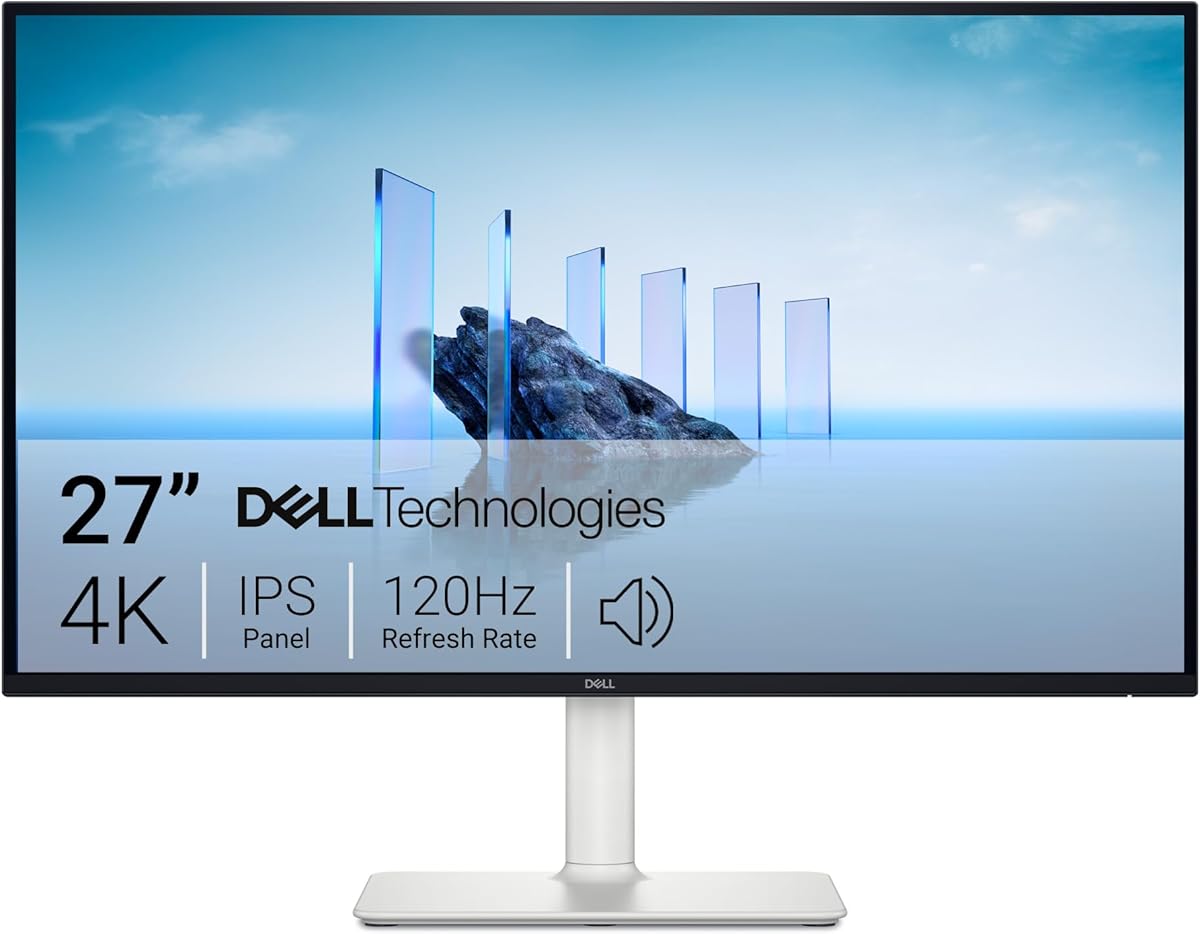
The Dell S2725QS is a 4.4-rated 27-inch monitor that combines a 3840 by 2160 IPS display with a refresh rate of up to 120Hz. That pairing makes it unusually versatile for an affordable 4K option: office users get crisp text and stable color, while gamers benefit from substantially smoother motion than a conventional 60Hz 4K screen.
We may earn a commission when you buy through this link, at no additional cost to you.
Its 0.03ms response-time specification, AMD FreeSync Premium support, and 5ms general response specification target competitive gaming without sacrificing 4K output. The IPS panel also covers 99 percent of sRGB, with a 1500:1 contrast ratio and HDR readiness. ComfortView Plus is designed to reduce blue-light emissions to 35 percent or less without compromising color accuracy, which is useful during long work sessions.
The sound system is another differentiator. Dell describes re-engineered audio with greater output power, deeper frequency response, and a broader decibel range than the previous generation. That does not make the monitor a substitute for a serious audio setup, but it can reduce desk clutter for calls, videos, and casual listening. The ash-white finish and ultra-thin bezels also give it a more refined appearance than many utilitarian office monitors.
This is the strongest all-around choice in the group for someone who wants detailed 4K imagery, comfortable daily productivity, and a faster refresh rate for gaming. The main caveat is that the supplied specifications do not enumerate every physical port or describe a full stand-adjustment range, so buyers who depend on particular connectivity or ergonomic movement should confirm those details on the listing.
A 120Hz ceiling gives this monitor a more noticeable sense of fluidity during scrolling, fast-paced games, and general desktop navigation. FreeSync Premium adds variable-refresh support for compatible systems, making the display more practical for a mixed productivity and gaming setup.
The 99 percent sRGB IPS panel is well suited to general creative work and media consumption. ComfortView Plus adds blue-light reduction, while the wide viewing angles of IPS help maintain consistent presentation when you are not sitting directly in front of the screen.
We may earn a commission when you buy through this link, at no additional cost to you.
The ZZA 27-inch 4K UHD Monitor earns a 4.2 rating and offers a practical combination of resolution, connectivity, and a 75Hz refresh rate. At 3840 by 2160, it provides four times the pixels of Full HD, making small text more legible and giving creative applications a much more detailed workspace.
We may earn a commission when you buy through this link, at no additional cost to you.
Connectivity is unusually generous for this category. Two HDMI 2.0 and two DisplayPort 1.2 inputs make it easy to rotate between a desktop, laptop, and console without relying on a single cable. A 3.5mm headphone jack and audio output provide convenient options for private listening, while the 75Hz refresh rate improves fluidity over the standard 60Hz baseline.
The monitor supports HDR10, tilt adjustment from 5 to 15 degrees, and a 75 by 75 millimeter VESA pattern. These details make it flexible for offices, shared workstations, and compact desks where a larger screen may be inconvenient. On the other hand, the supplied information does not state the sRGB or DCI-P3 coverage, and the ergonomic options are more limited than those of a professional adjustable stand.
Choose the ZZA when your priority is obtaining a sharp 4K canvas with plentiful ports at a budget-friendly level. It is less obviously suited to buyers who need a published color-gamut figure, extensive ergonomic adjustment, or high-refresh competitive gaming.
Multiple HDMI and DisplayPort connections are valuable in offices where a monitor may alternate between two computers. They reduce constant cable swapping and make the display easier to integrate into a multi-device workspace.
The 75Hz refresh rate is a meaningful step above 60Hz for scrolling and casual gaming. It does not compete with 120Hz or 240Hz models, but it can deliver a smoother-feeling experience while preserving the productivity benefits of native 4K resolution.
We may earn a commission when you buy through this link, at no additional cost to you.
The Samsung ViewFinity S7 S71H carries a 4.8 rating, the highest among these ten products. Its 32-inch 4K UHD IPS panel combines a high pixel density with a large physical area, creating an effective balance between detailed documents and room for side-by-side applications.
We may earn a commission when you buy through this link, at no additional cost to you.
Samsung highlights HDR10 support, including a gamut of more than one billion colors, darker blacks, and brighter highlights. That makes the monitor relevant to detailed design work, video, and general media viewing. Game Mode can automatically adjust color and contrast for clearer scenes, while Eye Saver Mode, certified by TÜV, reduces blue light and prevents flickering during extended sessions.
The principal limitation is that the supplied specifications do not identify a maximum refresh rate, response time, or complete port configuration. The S71H should therefore be judged primarily as a high-resolution productivity display rather than promised as a competitive esports monitor. Its large 32-inch footprint also demands more desk space than a 27-inch model, and some users may need to adjust text scaling.
This Samsung is the pick for a buyer who wants the largest native-4K canvas in the group without moving into a costly professional display class. It is especially attractive for spreadsheets, timelines, design references, document editing, and multitasking, provided the current listing confirms the stand and connections suit your desk.
A 32-inch 4K display gives you enough pixels for high-resolution media and enough physical room to reduce window switching. It can function as a more practical single-screen alternative to a dual-monitor arrangement for many workflows.
HDR10 support can improve perceived contrast and highlight detail in compatible content. Eye Saver Mode adds blue-light reduction and flicker prevention, creating a more comfortable display for long editing or document sessions.
We may earn a commission when you buy through this link, at no additional cost to you.
The Samsung ViewFinity S7 S70H is a 4.2-rated 27-inch 4K UHD monitor designed around productivity. Its high pixel density makes small type easier to read, while the compact 27-inch format is easier to accommodate than a 32-inch screen. HDR10 support adds richer contrast for compatible media and content.
We may earn a commission when you buy through this link, at no additional cost to you.
The standout feature is Samsung Display Manager. It provides convenient access to split-screen layouts, brightness controls, KVM functions, picture-in-picture and picture-by-picture modes, and calibration tools. Those capabilities can streamline workflows that involve one computer or multiple sources, reducing the need to rearrange windows constantly.
Samsung also emphasizes a 178-degree viewing angle, so colors and brightness remain consistent from a broader range of positions. Eye Saver Mode reduces blue light and prevents flickering, making the monitor suitable for long periods of reading, spreadsheet work, and general productivity. HDMI and DisplayPort provide the expected modern digital connectivity.
The main uncertainty is motion performance, because the supplied information does not state a refresh rate or response time. If you need competitive gaming, the Dell S2725QS or Acer Nitro VG270K L1 may be a safer fit. For office work, web research, and media viewing, however, the S70H offers an excellent combination of 4K clarity and management tools.
Display Manager turns several common desktop tasks into quick adjustments. Split-screen, PIP, PBP, brightness, and KVM access are particularly useful when you regularly move between documents, calls, and different computers.
The 27-inch format preserves a manageable footprint while still offering 3840 by 2160 resolution. It works well for dense productivity interfaces where a larger 4K display might force you to accept smaller text.
We may earn a commission when you buy through this link, at no additional cost to you.
The LG 27US500-W Ultrafine is a 4.4-rated 27-inch 4K display with a strong emphasis on color and viewing comfort. Its IPS panel, 1000:1 contrast ratio, and wide viewing angles make it well suited to viewing detailed creative work, HDR content, and everyday productivity.
We may earn a commission when you buy through this link, at no additional cost to you.
Color coverage is a key attraction. LG specifies up to 90 percent DCI-P3 expression, which is broader than a basic sRGB-only presentation and useful for viewing professional media. HDR10 support is included, while the 3840 by 2160 resolution provides enough detail for photo references, design work, and sharp interfaces.
For comfort, Reader Mode is intended to reduce visual fatigue during long reading sessions, and Flicker Safe technology helps limit screen flicker. The supplied information also lists a Switch App, providing an additional way to manage the display. Onscreen Control allows users to split the workspace or change basic options with a few mouse clicks.
The ergonomic stand is described as adjustable for tilt, and the package includes the stand body, base, screws, power adapter, an HDMI cable, and documentation. It is a compelling creative and productivity option, although buyers who need a high refresh rate for fast gaming should not assume capabilities that the supplied specifications do not list.
Up to 90 percent DCI-P3 coverage gives the display more headroom for vivid media and many creative tasks than a standard sRGB-focused panel. HDR10 support further improves contrast when applications and content are properly calibrated.
Reader Mode and Flicker Safe technology are valuable additions for offices, students, and writers. Onscreen Control also reduces the need to hunt through physical menu buttons for common adjustments.
We may earn a commission when you buy through this link, at no additional cost to you.
The Sceptre U325W-UPT is a 32-inch native-4K monitor offering a large canvas at a value-focused specification level. Its 3840 by 2160 resolution delivers four times the pixels of Full HD, while the 32-inch screen provides enough physical space for multiple windows, complex timelines, and detailed design applications.
We may earn a commission when you buy through this link, at no additional cost to you.
It includes two DisplayPort and two HDMI inputs, giving buyers flexible options for a desktop, laptop, and console. The 100 percent sRGB coverage is appropriate for general creative work and mainstream media, while a 70Hz refresh rate with overclocking provides somewhat smoother motion than a standard 60Hz display.
Built-in speakers are a practical inclusion for video conferencing, system audio, and media consumption without taking up more desk space. Blue Light Shift and flicker-free technology are intended to reduce fatigue during extended editing or general use. A 100 by 100 millimeter VESA pattern also supports wall mounts and articulating arms.
Its 3.9 rating is the lowest in this list, and 70Hz is modest compared with faster gaming displays. Nevertheless, the combination of screen size, resolution, speakers, and ports is compelling for a large secondary or productivity display. Treat it as a feature-focused work monitor rather than a high-speed gaming choice.
Thirty-two inches provides enough room to keep reference material, communication tools, and a main document visible at once. Native 4K preserves clarity when several windows are arranged side by side.
Integrated speakers and four video inputs reduce desk clutter and make the display flexible across work and entertainment setups. VESA compatibility adds further placement flexibility.
We may earn a commission when you buy through this link, at no additional cost to you.
The Philips 27E1N1800A is a 4.2-rated 27-inch 4K UHD monitor offering a balanced set of productivity and media features. IPS technology provides wide viewing angles and rich colors, while HDR support expands its usefulness with compatible content and everyday media.
We may earn a commission when you buy through this link, at no additional cost to you.
Adaptive-Sync is designed to produce smoother, artifact-free presentation at virtually any frame rate. The supplied specifications do not quote a maximum refresh rate, so the display should not be judged as a dedicated high-speed gaming monitor. It is better positioned as a sharp general-purpose screen for office work, creative applications, and video.
Flicker-free technology and LowBlue Mode focus on comfort during prolonged viewing. These features are particularly relevant for users who spend the workday reading documents, editing code, or working with detailed applications. The monitor also includes built-in speakers for convenient everyday audio.
HDMI and DisplayPort inputs provide broad compatibility with laptops, desktops, and other modern sources. Philips is a sensible option for buyers who want IPS color behavior, HDR, and eye-comfort features in a straightforward 4K package, although the listing should be checked for exact stand adjustment and current port details.
IPS technology is useful when the screen is viewed from different positions or used for mixed creative and office tasks. It provides rich colors and wide angles without moving to a higher-priced professional panel class.
Flicker-free operation, LowBlue Mode, and built-in speakers cover several daily-use needs. Digital inputs keep the monitor compatible with current computers and laptops.
We may earn a commission when you buy through this link, at no additional cost to you.
This generic 27-inch 4K UHD monitor is rated 4.0 and focuses on useful fundamentals at a budget-oriented level. Its native 3840 by 2160 resolution provides the sharp text and detailed image area that make 4K worthwhile for professional documents, spreadsheets, photos, and videos.
We may earn a commission when you buy through this link, at no additional cost to you.
The IPS panel covers 99 percent sRGB and has a 178-degree viewing angle. Those specifications make it more appropriate for general design and media work than a basic viewing-oriented 4K screen, although it should not be treated as a fully specified professional color monitor without calibration and a more detailed color report.
Connectivity is the distinguishing feature. The display includes DisplayPort, HDMI, Type-C, USB, and other interfaces, offering more ways to connect a laptop and peripherals than many competing models. A borderless design visually reduces the bezel width, while VESA support and tilt adjustment provide basic placement flexibility.
With a 60Hz refresh rate and 5ms response time, it is not the right selection for competitive gaming or motion-intensive work. It is better suited to office productivity, design viewing, programming, and video playback. Its broad port selection may be the decisive advantage for users with a USB-C laptop or a more complex desk setup.
DisplayPort, HDMI, Type-C, and USB give this display broader connection options than many alternatives. That makes it appealing for laptop users who want to reduce the number of separate cables and adapters around the workstation.
Native 4K resolution and 99 percent sRGB IPS coverage deliver a clear, familiar balance for office work and media. The limitation is a 60Hz ceiling, which is less noticeable in static documents than in fast-moving games.
We may earn a commission when you buy through this link, at no additional cost to you.
The Acer Nitro VG270K L1 is a 4.2-rated 27-inch gaming monitor with a distinctive Dynamic Frequency Range feature. It can run at up to 72Hz with its native 3840 by 2160 resolution, allowing the system to alternate toward 144Hz when the output resolution is reduced to 1920 by 1080.
We may earn a commission when you buy through this link, at no additional cost to you.
That flexibility lets users prioritize detail for design, office work, and video while retaining a much faster refresh option for compatible games. AMD FreeSync helps synchronize frames with compatible graphics cards, and the monitor can reach 144Hz at Full HD. Its 1ms G-to-G response is listed with up to 0.5ms, supporting responsive motion and reducing visible smearing or ghosting.
Color capabilities are also strong. The IPS panel is specified for DCI-P3 95 percent color saturation and Acer HDR10 support, which can improve contrast and color range in compatible games. The near-bezel-free ZeroFrame design also helps create a more continuous picture when monitors are placed next to each other.
The compromise is inherent in the dynamic approach: obtaining the 144Hz mode means using Full HD rather than 4K. If you want 4K at all times and prioritize work or creative detail, choose the Dell S2725QS instead. If you want the flexibility to switch between high-detail and high-speed modes, the Nitro offers an appealing and distinctive solution.
Dynamic Frequency Range is the defining feature. You can retain 4K resolution for detailed work, then select 144Hz at Full HD when a game benefits more from faster motion than additional pixels.
The up-to-0.5ms G-to-G response, FreeSync support, and DCI-P3 95 percent coverage create a gaming-focused package. HDR10 support adds greater contrast when the game and system support it.
We may earn a commission when you buy through this link, at no additional cost to you.
The Sceptre C345B-QU240T is included as an alternative rather than a conventional 4K choice. Its native 3440 by 1440 resolution is ultrawide QHD, not 3840 by 2160, but the 1500R curve, up-to-240Hz refresh rate, and 1ms response time make it a compelling high-performance gaming alternative.
We may earn a commission when you buy through this link, at no additional cost to you.
For competitive and fast-moving games, the combination of 240Hz and a 1ms response time can be more valuable than 4K resolution. Wide 3440-by-1440 images also provide more horizontal room than a standard 16:9 display, which can benefit strategy games, racing titles, and multitasking. Two HDMI and two DisplayPort connections offer flexible source options.
The monitor covers 100 percent sRGB, supports Blue-Light Shift, and includes built-in speakers plus an audio-out jack. Those additions make it practical for mixed work and entertainment use. The 1500R curve is intended to immerse the viewer and maintain a more natural viewing distance across the wide panel.
It does not meet a strict requirement for native 4K, so it should not be chosen for fine 4K editing, very dense documents, or a shopping query where 3840 by 2160 is non-negotiable. It earns a place because some buyers prioritize competitive gaming and ultrawide immersion enough to accept a lower pixel count. For everyone else, a true 4K model in this guide is more appropriate.
The 240Hz ceiling and 1ms response time prioritize fast motion over 4K detail. That is a meaningful trade-off for competitive games where fluid updates and quick visual transitions are central to performance.
The curved 3440 by 1440 canvas offers more room for games, timelines, and side-by-side windows. Blue-Light Shift and integrated audio add everyday convenience beyond gaming.
We may earn a commission when you buy through this link, at no additional cost to you.
Choosing a cheap 4K monitor means balancing resolution with panel quality, motion performance, color, connectivity, and physical design. The most important step is deciding how you will use the display rather than treating every specification as equally valuable.
A genuine 4K monitor displays 3840 by 2160 pixels, providing four times as many pixels as Full HD. That density produces sharper text, finer interface elements, and more detailed photos, but the benefit is most visible when your operating system and applications are properly scaled. It also makes a 27-inch monitor feel substantially more precise than a similarly sized 1080p screen.
IPS panels are common among the strongest choices in this guide because they provide wide viewing angles and consistent color. They suit general office work, media, and many creative tasks. The supplied models do not include a VA or OLED alternative, so IPS is the central panel type to evaluate. Also check the stated contrast ratio, since a higher figure can produce deeper dark areas, although the number alone does not define overall image quality.
Refresh rate controls how often the image updates each second. A 60Hz 4K display is perfectly suitable for documents, programming, and video, while 75Hz or 120Hz provides smoother scrolling and gaming. Response time indicates how quickly a panel changes between shades, but unusually small manufacturer figures should be understood as specifications rather than a guarantee of real-world performance. Variable-refresh support can improve the experience on compatible systems.
sRGB coverage is the most relevant baseline for web content, documents, and general media. The LG reaches up to 90 percent DCI-P3, the Acer is listed at DCI-P3 95 percent, and several other models support 99 percent or 100 percent sRGB. HDR10 can improve perceived contrast and highlight range, but its usefulness depends on panel capability, brightness, and correctly graded content. Professional color-critical work still requires calibration.
A 27-inch 4K display offers a compact footprint and strong pixel density, making it a versatile default for a single desk. A 32-inch model creates a larger canvas for timelines, spreadsheets, and side-by-side applications, but demands more space and may require text scaling. A 34-inch ultrawide offers wide horizontal room but uses a different resolution, so it should only be considered when 4K is not essential.
HDMI and DisplayPort are the core requirements for most current computers, while multiple inputs make it easier to connect a desktop and laptop to the same display. USB hubs and Type-C can simplify peripheral management, particularly with a compatible laptop, although the exact supported standards and power-delivery capabilities should be confirmed. Check the product listing to ensure your preferred source and audio-output arrangement are present.
A monitor that cannot be positioned comfortably can cause strain even when its image quality is excellent. Tilt adjustment is the most common basic movement, while height, swivel, and pivot controls offer more flexibility. VESA compatibility expands mounting options, including monitor arms, wall mounts, and multi-monitor arrangements. For a 32-inch display, verify that your desk is deep enough and that you can maintain a comfortable viewing distance.
Long sessions are easier on the eyes when a monitor includes flicker prevention, blue-light reduction, or a reading mode. Samsung Eye Saver Mode, Dell ComfortView Plus, Philips LowBlue Mode, LG Reader Mode, and Sceptre Blue-Light Shift all address parts of this issue. Built-in speakers can handle calls, videos, and casual music conveniently, though they do not replace a quality headset or external speaker system for serious audio.
Begin by connecting the monitor with the highest-quality mutually supported interface, select the native 3840 by 2160 resolution, and confirm that the refresh rate matches the intended task. On Windows, open the display settings to choose the proper resolution and refresh rate, then use the monitor’s controls or manufacturer software to adjust brightness, contrast, and sharpness.
For a comfortable desk arrangement, center the display at or slightly below eye level and position it roughly an arm’s length away. Increase the viewing distance for a 32-inch screen, especially when multiple windows are open. If text appears too small at 4K, use operating-system scaling rather than reducing the resolution, which would remove the principal sharpness advantage.
Clean the panel with a soft, lint-free microfiber cloth and avoid pouring liquid directly onto the screen. Let the monitor cool before cleaning, use mild soap only when necessary, and keep vents unobstructed. Periodically check cables, firmware or software updates, display settings, and compatibility with your connected computer to maintain stable operation.
For productivity, photo viewing, and text-heavy work, a native 4K monitor usually offers visibly sharper details and more usable screen area. It is especially effective at 27 inches or larger. However, a good 1080p display may feel smoother if its refresh rate is substantially higher, and 4K is not automatically better for every game or computer setup.
A 4K monitor can reveal more detail in high-resolution images and provide more room for editing tools, but resolution alone does not guarantee accurate color. Look for IPS or a professional-oriented panel, a published gamut figure, suitable contrast, and a display that can be calibrated. For critical printing work, hardware calibration and color management remain important.
Yes, if the display is mainly used for documents, web browsing, programming, spreadsheets, and video. At that resolution, the display can still look exceptionally sharp. Competitive gamers or users who value very smooth scrolling should consider 75Hz, 120Hz, or a higher-refresh alternative.
A 27-inch model is easier to fit on a typical desk and offers excellent pixel density at a normal viewing distance. A 32-inch model is better for large documents, timelines, and side-by-side applications, but takes more space and may make interface text small without scaling. Consider your desk depth, viewing distance, and operating-system scaling preferences.
No. HDR is one part of the overall image and can improve contrast on properly graded content, but peak brightness, color gamut, local dimming, and calibration also influence the result. A model with a strong IPS panel, 99 percent or 100 percent sRGB coverage, and wide viewing angles may provide a more consistently satisfying image than a basic monitor marketed mainly around HDR.
They are convenient for system notifications, video calls, presentations, and casual media viewing, and they can reduce the number of devices on your desk. Their sound quality and output power rarely match dedicated speakers or a good headset. If audio quality matters, use the display's audio output with higher-quality external equipment.
Curvature can make a very wide display feel more immersive and may help keep its edges at a similar viewing distance. It does not inherently improve sharpness or color accuracy. A flat native-4K monitor remains the better choice when the priority is document sharpness, color work, or a conventional 16:9 format.
Use the operating system's recommended scaling setting so text and menus are rendered at a comfortable physical size while retaining the 4K resolution. Keep the display at a suitable distance, use reasonable brightness, and select a sharp or high-resolution mode in the monitor settings. Avoid using lower-resolution scaling, which reduces clarity and negates much of the benefit.
The Dell S2725QS is the most complete choice because it pairs native 4K with an IPS panel, a refresh rate of up to 120Hz, FreeSync Premium, and 99 percent sRGB coverage. The Samsung ViewFinity S7 S71H is ideal for a large 32-inch workspace, while the ZZA 27-inch model provides a budget-conscious mix of 4K clarity, 75Hz motion, and abundant ports.
Prioritize native 3840 by 2160 resolution if sharp text and detailed images matter, then choose the panel, refresh rate, and color coverage that match your work. Office users may place greater value on eye-comfort features and adjustable controls, while gamers should look for faster motion, low response times, and variable-refresh support. Screen size and VESA compatibility deserve equal attention.
Current prices, availability, warranty terms, and exact port configurations can change over time, so confirm the latest listing before purchasing. The right inexpensive 4K monitor is not necessarily the one with the largest specification list; it is the one that delivers the right combination of clarity, comfort, connectivity, and performance for your desk.