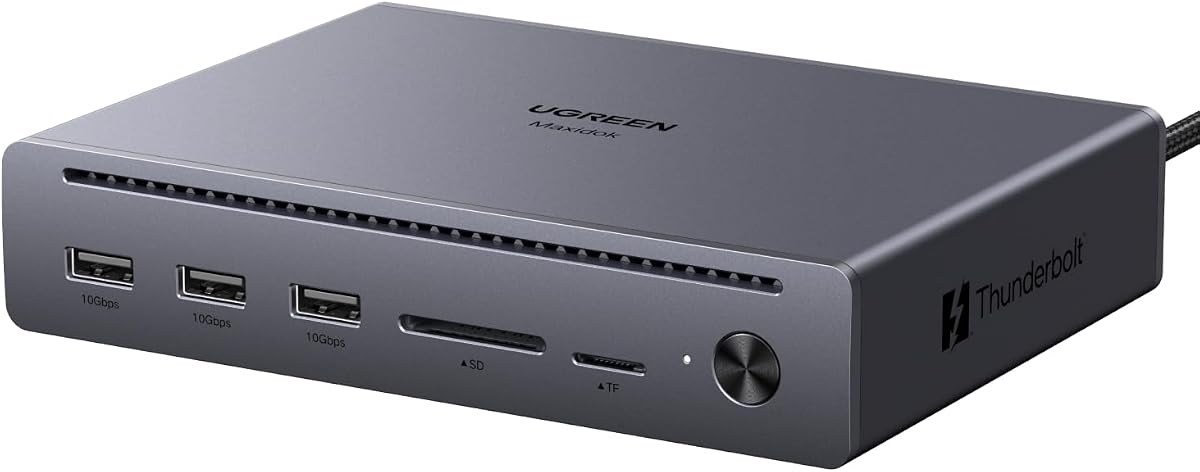
UGREEN Maxidok 3xTBT5 Dock
4.4Editor score
Three Thunderbolt 5 ports
Triple 4K display support
Up to 100W laptop charging
Our Thunderbolt 5 Dock guide compares ten leading docks for display support, charging, storage, networking, port selection, and productivity.
Thunderbolt 5 docks turn a single compatible laptop connection into a full workstation, combining high-bandwidth data transfer, display expansion, wired networking, card reading, and device charging. The strongest models suit demanding creative and technical workflows, while simpler options focus on essential connectivity and easy desk organization.
We compared all ten products by examining their supplied specifications, including Thunderbolt bandwidth, display modes, power delivery, Ethernet speed, card-reader support, expansion options, cooling, security, and host compatibility. The guide covers true Thunderbolt 5 docks alongside Thunderbolt 4 options that remain practical alternatives for many laptop users.
Each review identifies the ideal buyer, the strongest benefits, and the compromises worth considering. You will also find a side-by-side comparison, guidance on display and charging requirements, and setup advice. Product specifications and availability can change, so confirm current compatibility with your computer before purchasing.
4.4Editor score

4.8Editor score

4.7Editor score
This comparison highlights the major differences among the ten docks, focusing on host bandwidth, display flexibility, charging capacity, wired networking, storage expansion, and the number of peripheral connections available.
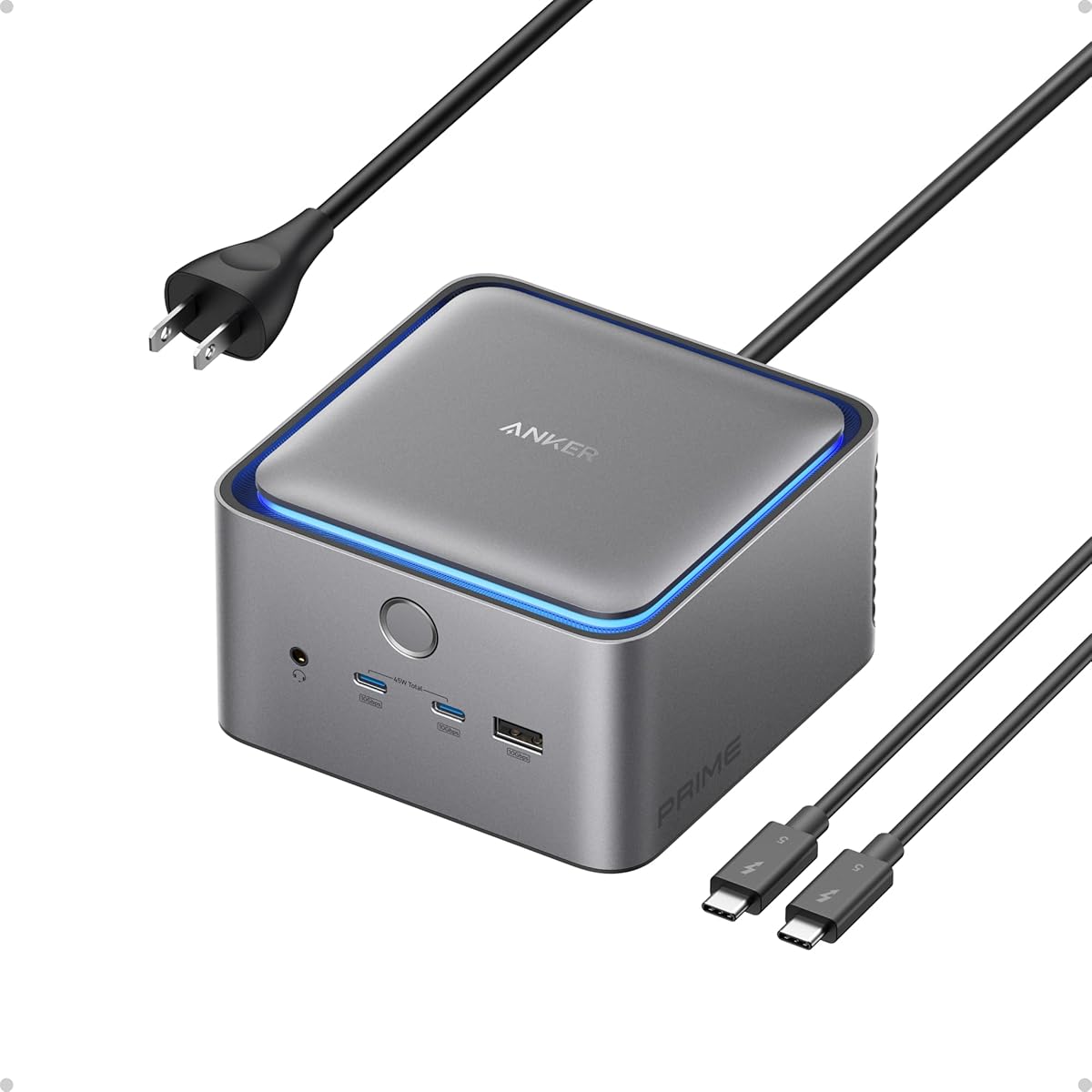


The Anker Prime TB5 Docking Station is a broad 14-in-1 expansion solution with a listed rating of 4.2. It combines three Thunderbolt 5 connections, several USB-A and USB-C ports, memory-card readers, 2.5Gbps Ethernet, an audio jack, and display output in one enclosure. That combination makes it a practical choice for users who want one cable to connect a laptop to a full desk setup.
We may earn a commission when you buy through this link, at no additional cost to you.
Its defining strength is display flexibility. The dock supports one HDMI or DisplayPort output plus two downstream Thunderbolt 5 video outputs. Depending on the host and display configuration, it can deliver a single 8K display at 60Hz or dual 8K displays at 60Hz with compatible Thunderbolt 5 Windows laptops. The upstream port also supports up to 140W power delivery, while the front USB-C ports provide a combined 45W for accessories.
Anker also includes an active cooling system, which is useful when the dock is asked to move large files or support demanding displays continuously. The supplied package includes a Thunderbolt 5 cable, AC power cable, safety documentation, and a 24-month warranty. The trade-off is that advanced cooling and a broad port array require more desk space than a compact travel dock, and the exact display arrangement depends on your computer's capabilities.
This is a strong recommendation for a Windows Thunderbolt 5 workstation owner who values a balanced mix of ports, charging, and high-resolution displays. It is less suited to users who need only a few connections or who travel frequently. Confirm your laptop's display support and determine whether your monitors use HDMI, DisplayPort, or USB-C before assembling the setup.
The dock's mix of DisplayPort 2.1 or HDMI 2.1 and Thunderbolt 5 outputs gives it more display flexibility than a basic USB-C hub. Use downstream Thunderbolt outputs for compatible high-resolution screens and reserve the dedicated display connector for the arrangement that best matches your laptop.
Up to 140W host charging helps power demanding notebooks while they remain connected. Anker's active cooling system adds another layer of stability during sustained transfers and multi-display operation, although the dock is better suited to a permanent desk than a mobile setup.
We may earn a commission when you buy through this link, at no additional cost to you.
The WAVLINK Thunderbolt 5 Dock is a 12-in-1 Intel-certified option with a listed 4.1 rating. It includes one 120Gbps upstream Thunderbolt 5 port, three 80Gbps downstream Thunderbolt 5 ports, four USB-A 3.2 ports, 2.5G Ethernet, an SD 4.0 reader, audio, and a Kensington security slot. It is especially interesting for users who want more than the usual single downstream high-speed port.
We may earn a commission when you buy through this link, at no additional cost to you.
The supplied specifications highlight single-display 8K at 144Hz, dual-display 8K at 60Hz, and triple-display 4K at 144Hz. Triple-display operation requires a Windows 11 or later computer with Thunderbolt 5, while macOS systems are limited to dual external displays through this dock. The three downstream Thunderbolt 5 ports also provide 15W or 30W charging, allowing compatible peripherals to receive power while other devices remain connected.
WAVLINK includes SD 4.0 transfer capability of up to 312MB/s and 2.5G Ethernet for fast local networking. A security slot and four anti-slip feet help make it suitable for an office or shared workspace. On the downside, USB-C-to-HDMI or DisplayPort cables and the security lock are not included, and maximum resolution and refresh rates depend on the host, operating system, and connected equipment.
Choose this dock if you want a high-refresh multi-monitor setup, need numerous Thunderbolt downstream connections, or regularly move camera files from an SD card. It is most compelling for compatible Windows 11 systems. Mac users should verify that dual-display needs are sufficient because this model does not offer the same three-screen flexibility.
Three downstream Thunderbolt 5 ports distinguish this dock from simpler hubs. They can serve compatible displays, storage devices, and other high-speed peripherals while offering individual charging options, although Bandwidth Boost behavior depends on the host and connected hardware.
The listed 4K at 144Hz configurations are appealing for video, animation, simulation, and detailed interface work. Real-world output still depends on DSC support, graphics capabilities, and the cable or adapter connected to each monitor.
We may earn a commission when you buy through this link, at no additional cost to you.
The UGREEN Maxidok Thunderbolt 5 Docking Station is a 10-in-1 model with a listed 4.4 rating, making it one of the strongest-rated true Thunderbolt 5 options in this guide. It combines three 10Gbps USB-A ports, a dual SD and TF card reader, Gigabit Ethernet, DisplayPort 2.1, and two downstream Thunderbolt 5 ports in a fanless aluminum design.
We may earn a commission when you buy through this link, at no additional cost to you.
Its Intel-certified Thunderbolt 5 connection provides up to 120Gbps unidirectional bandwidth and 80Gbps bidirectional bandwidth. UGREEN states that a 6GB 4K video can transfer in about one second under suitable conditions. Display support includes single or dual 8K at 60Hz and triple 4K at 144Hz through the combination of DisplayPort 2.1 and the two Thunderbolt outputs.
This model offers up to 100W laptop charging, which is suitable for many demanding notebooks, including the stated 16-inch MacBook Pro use case. It also includes a security lock and emphasizes silent operation through its fanless design. Its main limitation is Gigabit Ethernet rather than 2.5G networking, and an active DisplayPort-to-HDMI adapter or cable is required for compatible HDMI displays.
The UGREEN dock is a convincing pick for builders who prioritize speed, display options, and quiet operation without needing every possible port. It is especially attractive for creative professionals and developers on compatible Thunderbolt systems. Before buying, verify the required number and type of displays, because macOS and Windows support different maximum arrangements.
Thunderbolt 5 bandwidth makes this dock suitable for rapid file movement and demanding external storage. The aluminum body and fanless thermal design help preserve performance without the operating noise of a fan-equipped model.
The dock can support an ambitious three-monitor arrangement, but the exact result depends on your computer and operating system. Check whether your panels support the target refresh rate and whether DisplayPort 2.1 or DSC is available through the host.
We may earn a commission when you buy through this link, at no additional cost to you.
The UGREEN Maxidok with NVMe support is a 17-port Thunderbolt 5 dock built for users who want external storage, displays, networking, charging, and peripherals in one device. Its listed rating is 4.2. The built-in PCIe Gen4x4 M.2 slot accepts compatible 2230 through 2280 NVMe SSDs up to 8TB, allowing the dock to function as more than a traditional port hub.
We may earn a commission when you buy through this link, at no additional cost to you.
The full connection set includes three 10Gbps USB-A ports, three 10Gbps USB-C ports, SD and TF 4.0 readers, three 3.5mm audio connections, 2.5G Ethernet, DisplayPort 1.4, and two downstream Thunderbolt 5 ports. Two USB-C ports share 60W charging, while the dock's overall power system can supply up to 240W. This makes it relevant to workspaces using several powered accessories as well as a host notebook.
Display specifications include dual or single 8K at 60Hz and three independent displays on compatible Windows systems. Macs support dual displays. The DisplayPort output does not support DP++, so an active adapter or cable is needed for HDMI. Storage compatibility requires an M-key NVMe drive with a suitable size and a maximum stated height of 12mm and width of 24mm; several larger heatsink-equipped models are excluded.
UGREEN uses aluminum construction and a 60mm cooling fan for sustained performance. UGREEN states that fan noise remains below 30dB in laboratory conditions, though some audible noise is normal. This is the pick for editors, developers, and data professionals who want integrated high-speed caching. Check your SSD dimensions before ordering and make sure the host can support your intended monitor layout.
The internal M.2 slot can hold high-speed local storage for media caches, project files, backups, or virtual-machine data. It is particularly useful for creative workflows that would otherwise require a separate enclosure connected to another Thunderbolt port.
The 240W total system power rating supports a demanding host and multiple powered accessories. Individual output limits still vary by port, so check the supplied power specifications before connecting several high-w_draw devices.
We may earn a commission when you buy through this link, at no additional cost to you.
The WAVLINK 13-in-1 Thunderbolt 5 Dock is a performance-focused option with a listed 4.7 rating. It combines an upstream 120Gbps Thunderbolt 5 port, three downstream 80Gbps Thunderbolt 5 ports, a PCIe Gen4x4 M.2 slot, 2.5G Ethernet, four USB-A 3.2 ports, an SD 4.0 reader, audio, and a Kensington security slot.
We may earn a commission when you buy through this link, at no additional cost to you.
Its standout feature is the internal M.2 storage slot, which supports PCIe Gen4x4 SSDs at up to 64Gbps. That can serve as a local high-speed cache for RAW footage, large PSD files, 3D assets, code repositories, virtual machines, or backup workflows. The integrated SD 4.0 reader also supports direct transfer of camera media, creating a convenient path from card to dock storage to host computer.
Display support includes single 8K at 144Hz, dual 8K at 60Hz, and triple 4K at 144Hz. As with the other WAVLINK models, triple external displays require Windows 11 or later with Thunderbolt 5, while macOS is limited to dual external displays. USB-C-to-HDMI or DisplayPort cables and the security lock are not included.
This is the strongest recommendation for high-end creative workstations where local caching and multi-screen performance matter more than a minimal footprint. The included 140W upstream connection can charge a demanding notebook, and downstream Thunderbolt ports offer 15W or 30W device charging. You must supply a compatible M-key 2280 NVMe SSD, so verify its physical design and confirm host compatibility before building the system.
Putting compatible NVMe storage directly inside the dock can shorten the path between high-volume project files and the host system. It is especially useful for timeline previews, local editing caches, large design projects, and rapid file ingestion.
The combination of triple Thunderbolt connections and high-refresh output modes makes this suitable for editing suites, grading workspaces, and complex application layouts. Actual performance still depends on graphics capabilities, DSC support, and the connected display adapters.
We may earn a commission when you buy through this link, at no additional cost to you.
The WAVLINK Thunderbolt 4 Dock is a practical alternative for users whose computers support Thunderbolt 4 or USB4 but do not need the full bandwidth of Thunderbolt 5. Its listed rating is 4.3. The dock offers two HDMI outputs, upstream and downstream Thunderbolt 4 connections, 96W host charging, SD and microSD 4.0 readers, 2.5G Ethernet, and audio.
We may earn a commission when you buy through this link, at no additional cost to you.
The dual HDMI configuration supports two 4K displays at 60Hz on compatible Windows laptops. A downstream Thunderbolt 4 display can support up to 8K at 60Hz or 4K at 120Hz when the display and connection support it. Mac behavior varies significantly by chip: some Pro and Max models can mirror two displays through the HDMI ports, while extending two displays may require one HDMI output and one Thunderbolt display connection.
A 160W power adapter supplies up to 96W to the host notebook, and the SD 4.0 card reader is listed at up to 312MB/s. The 2.5G Ethernet port supports faster wired networking than a standard gigabit connection, making the dock useful for NAS access, high-quality streaming, and low-latency network tasks.
This dock makes sense for mainstream professional desks that prioritize dependable displays, charging, and peripheral connectivity. It is less compelling when maximum transfer speed or high-refresh three-screen output is essential. Review the detailed Mac and Windows compatibility notes, because the operating system and graphics chip determine how many independent displays can be used.
A Thunderbolt 4 dock can meet the needs of most office productivity, development, and creative workflows. The lower platform bandwidth mainly matters when moving exceptionally large files or connecting specialized high-speed storage.
Display extension on Apple systems depends on the specific chip and macOS rules. Base M1, M2, and M3 models generally support one external display, while newer Pro, Max, and select M4 or M5 configurations offer additional options.
We may earn a commission when you buy through this link, at no additional cost to you.
The Lenovo ThinkPad Thunderbolt 5 Smart Dock 7500 is aimed at commercial users and managed IT environments. Its listed 3.9 rating is the lowest among the products in this guide, but the specification sheet is built around demanding enterprise needs: up to 120Gbps data speed, 180W power delivery, extensive display support, and cloud-based fleet management.
We may earn a commission when you buy through this link, at no additional cost to you.
The dock can drive up to three 8K 60Hz displays or four monitors in varied arrangements, including combinations with 4K at 240Hz and 4K at 120Hz. Its port selection includes Thunderbolt 5, HDMI 2.1, DisplayPort 2.1, USB-A and USB-C connections, 2.5Gbps Ethernet, and combo audio. That range supports high-resolution offices, editing stations, developer desks, and mixed hardware environments.
Its standout feature is Lenovo Accessories Fleet Manager, a cloud-based solution powered by AWS. IT teams can remotely configure, update, and diagnose deployed docks from another location. The 180W PD 3.1 output is particularly valuable for high-performance notebooks that need substantial charging while working at a connected desk.
This is a strong recommendation for organizations managing multiple ThinkPad-based workstations rather than a single home setup. Its specialized management tools may offer little value to an individual user, and the listed rating suggests some degree of customer dissatisfaction despite the ambitious capabilities. Confirm fleet-management requirements and exact display configurations before adopting it broadly.
Fleet Manager gives IT departments a centralized way to configure and diagnose docks across different locations. That is a major advantage in offices where manual troubleshooting would otherwise consume substantial technical support time.
Up to 180W can sustain demanding mobile workstations during a full day of connected use. The exact charging rate still depends on the host notebook and the power profile negotiated through the dock.
We may earn a commission when you buy through this link, at no additional cost to you.
The WAVLINK Intel-Certified 12-in-1 Thunderbolt 5 Dock has a listed 5.0 rating, the highest in this guide. It combines three downstream Thunderbolt 5 ports, four 10Gbps USB-A ports, 2.5Gbps Ethernet, UHS-II SD and microSD 4.0 readers, a 3.5mm audio jack, and an upstream Thunderbolt 5 connection capable of 140W host charging.
We may earn a commission when you buy through this link, at no additional cost to you.
Its bandwidth specification includes up to 120Gbps dynamic throughput, 80Gbps bidirectional speed, and Bandwidth Boost. Display options include up to three 4K monitors on a compatible Windows 11 system with Thunderbolt 5, plus dual 6K output on supported Mac models. Those are useful configurations for productivity, video editing, development, and other workflows that benefit from a larger visual workspace.
The three downstream Thunderbolt ports can deliver up to 30W and 15W, allowing some peripherals to remain powered while the dock charges the host notebook. The SD and microSD readers support transfer speeds up to 312MB/s, while 2.5G Ethernet provides a more capable wired connection than standard gigabit Ethernet for large transfers, NAS work, and stable calls.
This dock is our leading balanced recommendation for users who want a true Thunderbolt 5 platform without adding a bulky internal SSD system. It offers enough ports for a serious desk while remaining more focused than the UGREEN and WAVLINK NVMe models. Triple-display use requires the stated Windows 11 and Thunderbolt 5 host configuration, and high resolutions may require DSC support.
Three Thunderbolt downstream ports, four USB-A connections, high-speed networking, card readers, and audio cover the most common desk peripherals. This balance makes the dock easier to adopt than an oversized specialist model.
Its 5.0 listed rating reflects a very strong customer response, although rating totals and individual experiences can change over time. The underlying specifications also align with the guide's priorities: fast bandwidth, useful charging, strong networking, and flexible display output.
We may earn a commission when you buy through this link, at no additional cost to you.
The Dell Pro Thunderbolt 4 Smart Dock SD25TB4 is a business-focused workstation hub with a listed 4.2 rating. It supports up to four 4K monitors through HDMI 2.1, DisplayPort 1.4, USB-C, and Thunderbolt 4 outputs. Its two Thunderbolt 4 data ports also allow chaining as many as six devices, reducing the number of cables connected directly to the laptop.
We may earn a commission when you buy through this link, at no additional cost to you.
Power delivery reaches up to 130W for Dell systems and 96W for other laptops. Connectivity includes two DisplayPort 1.4 ports, HDMI 2.1, two Thunderbolt 4 ports, 2.5GbE, and USB connections. The dock is designed for creative, data, and AI workloads that need several screens while retaining fast wired networking and broad peripheral support.
Its management features set it apart. Dell Console and Intel AMT can be used over Wi-Fi to manage docks without the dock being connected to a computer. Security features include WPA3 encryption, PXE boot, MAC filtering, direct memory access protection, and a secure enclosure. The enclosure uses 65% recycled plastic, while the packaging is entirely recycled.
This model is best for managed commercial environments where security, remote troubleshooting, and multi-display productivity matter. It remains useful to individuals, but it does not provide Thunderbolt 5 bandwidth or integrated NVMe storage. Confirm that your organization can use Dell's management workflow and verify the exact display arrangement with your laptop and monitors.
Remote configuration and diagnosis can shorten troubleshooting cycles in distributed offices. This is particularly valuable when a user is traveling, working remotely, or unable to bring a docked system to an IT technician.
Four 4K displays can separate communication, documents, reference material, and focused work across a large desk. The arrangement requires compatible host graphics, suitable cables or adapters, and enough power and thermal capacity for the selected displays.
We may earn a commission when you buy through this link, at no additional cost to you.
The Belkin 140W Thunderbolt 5 Dock is a polished 14-in-1 workstation option with a listed 4.8 rating. It supports transfer speeds up to 80Gbps and Thunderbolt 5 Bandwidth Boost up to 120Gbps. The dock is designed to connect compatible MacBook Pro, Chromebook, iPad, iPhone 17, and other USB-C hosts through one cable for a cleaner desk.
We may earn a commission when you buy through this link, at no additional cost to you.
Display support includes up to three extended 4K monitors at 144Hz and 8K at 60Hz, subject to host and display capabilities. For broader device connection, the dock includes 2.5G Ethernet, a 140W host charging connection, card and peripheral connectivity, and support for daisy chaining as many as six Thunderbolt devices. The network port is suitable for large transfers, video calls, downloads, and stable access to local services.
Belkin has also emphasized device protection through a six-point safety system covering over-voltage, overload, over-current, over-temperature, and short-circuit risks, along with fire-resistant materials. A Kensington lock is enabled for physical security. The product arrives in entirely plastic-free packaging and carries a three-year coverage policy.
This is an excellent recommendation for professionals who want a refined, balanced Thunderbolt 5 dock without a built-in M.2 storage module. It excels at high-refresh displays, strong charging, easy expansion, and sustainable packaging. It may not suit users who specifically want direct NVMe caching, but for general professional and creative desks it offers one of the most complete feature sets here.
Host charging up to 140W supports demanding notebooks while the dock manages displays, network access, and peripherals. This reduces desk clutter and makes moving between a laptop-only mode and a full workstation much simpler.
The physical lock and multi-point electrical protections suit offices where the dock may remain connected for extended periods. Plastic-free packaging also reduces unnecessary packaging waste, although device longevity and repairability should still guide sustainable purchasing decisions.
We may earn a commission when you buy through this link, at no additional cost to you.
The right Thunderbolt 5 dock depends on your host device, monitor arrangement, power requirements, peripheral count, and whether you need integrated storage. Use these factors to avoid paying for capabilities your computer cannot actually use.
A Thunderbolt 5 dock can look impressive while delivering less than expected if the computer lacks a compatible USB-C port. Check that your laptop supports Thunderbolt 5, Thunderbolt 4, or USB4 as required, and confirm that the operating system permits the number of external displays you intend to connect. Windows Thunderbolt 5 systems generally offer the broadest three-display configurations in this group, while macOS support depends on the Mac's chip and display mirroring or extension rules.
A dock's advertised maximum resolution is only one part of the equation. The host must support the target resolution and refresh rate, the monitor must accept the relevant signal, and the connecting cable or adapter must support DSC where required. Look for specific configurations such as triple 4K at 144Hz, dual 8K at 60Hz, or quad 4K output, then map them to your exact screen count and operating system.
Charging wattage is important for performance notebooks, but the dock must also negotiate the correct power profile with the connected laptop. Compare host charging limits, downstream USB-C charging, and total dock power where available. A 140W connection is useful for demanding systems, while 96W to 100W may suit many mainstream and Pro laptops. Always check the manufacturer's power requirements for your specific computer.
More Thunderbolt 5 ports create room for additional displays, storage, docks, and high-speed accessories without consuming USB-A ports. The upstream connection provides the path to the computer, while downstream ports can support devices directly or through daisy chaining. Models with three or four Thunderbolt ports are more flexible for demanding desks, though actual Bandwidth Boost use depends on compatible hosts and devices.
Integrated M.2 slots turn a dock into local storage or a high-speed cache, which is valuable for large media and development datasets. Check the supported NVMe protocol, connector key, physical size, heatsink clearance, and maximum capacity. None of these docks includes an SSD unless explicitly stated. If you do not need direct storage, a simpler model may provide more flexibility with less internal heat and complexity.
A 2.5G Ethernet port offers a meaningful improvement over gigabit networking for NAS access, large file transfers, and low-latency wired use. USB-A 3.2 ports remain useful for keyboards, mice, and legacy accessories, while USB-C ports can simplify high-speed peripherals and add charging. Count your actual connections, including card readers and audio, rather than relying only on the headline port count.
Sustained transfers and multiple displays generate heat, making the enclosure and cooling design relevant to long sessions. Fanless models operate quietly, while active cooling can support heavier loads but adds noise. Enterprise buyers should also consider Kensington slots, remote fleet management, network boot features, and security controls. Home users can prioritize the features that directly improve their particular desk.
Begin by confirming your computer supports the dock's required Thunderbolt or USB4 standard. Connect the power adapter first if the model uses an external supply, then attach the upstream Thunderbolt cable directly to the laptop rather than through an unverified hub. Connect displays one at a time and allow the operating system to negotiate the desired resolution and refresh rate before adding storage, Ethernet, and other peripherals.
For the cleanest multi-display setup, connect each monitor using the connector and cable best supported by both the dock and display. Thunderbolt-native displays can use the downstream Thunderbolt ports, while dedicated HDMI and DisplayPort outputs can serve other panels. Check the compatibility guidance for your operating system, especially on Mac systems, because mirrored and extended display arrangements do not always follow the same rules.
Keep the dock's ventilation openings clear, use a stable surface, and avoid stacking it beneath heavy equipment. Update the computer and dock firmware when updates are offered, safely eject storage before disconnecting it, and do not insert an incompatible M.2 SSD. Periodically inspect cables for damage, clean the enclosure with a dry soft cloth, and use the security slot or enclosure features when the dock is installed in a shared area.
Yes. The Thunderbolt 5 docks listed here are generally designed to work with compatible Thunderbolt 4 and USB4 hosts, although the fastest transfer and display modes may not be available. The WAVLINK Thunderbolt 4 dock can also operate with Thunderbolt 5 systems, but it will remain limited by its Thunderbolt 4 bandwidth. Always check the model's compatibility notes.
It depends on the dock and host. Several Windows Thunderbolt 5 configurations in this guide support triple 4K output, while triple-display support on macOS is generally more restricted. The host's graphics capability, operating system, connected display resolutions, DSC support, and cables can all determine the final result.
No. Thunderbolt-native USB-C displays can often connect directly to a downstream Thunderbolt port. Displays using HDMI or DisplayPort may require the dock's dedicated outputs or suitable cables and adapters. Two UGREEN models specifically state that their DisplayPort output does not support DP++, so an active adapter or cable is required for compatible HDMI displays.
It describes the maximum data bandwidth available to the connection, not the speed of every peripheral. Actual transfer rates depend on storage devices, host support, cable quality, the data protocol, and whether Bandwidth Boost is being used. Network, card-reader, and USB-A ports have their own individual speed limits.
No. The UGREEN and WAVLINK models with M.2 slots require a compatible NVMe SSD to be installed separately. Check the connector key, physical dimensions, heatsink height, and supported capacity before purchasing a drive. The WAVLINK NVMe model specifically requires an M-key 2280 drive.
Yes, within the dock's stated power limits. Several models support up to 140W or 180W host charging and can also deliver power through downstream Thunderbolt or USB-C ports. The available amount depends on the power adapter, the host's charging profile, and the total draw from all connected peripherals.
It can be worthwhile for NAS access, large transfers, high-quality streaming, and low-latency wired work. Gigabit Ethernet is sufficient for ordinary internet browsing, office applications, and many standard cloud workflows. If your router, switch, computer, and storage devices all support 2.5G, the faster port provides a more complete local network path.
Choose Thunderbolt 5 when your host supports it and your workflow benefits from faster storage, high-bandwidth peripherals, advanced display modes, or a larger Thunderbolt expansion budget. A Thunderbolt 4 dock remains appropriate for standard productivity, dual-display work, and charging needs, especially when your computer only supports that standard.
The best overall choices in this guide depend on the kind of workstation you are building. The WAVLINK 12-in-1 Dock leads with its 5.0 listed rating, balanced port selection, 140W charging, and strong multi-display support. Belkin's 140W model combines refined construction, three high-refresh displays, daisy chaining, and extensive safety protections, while the UGREEN 3xTBT5 model offers a leaner path into Thunderbolt 5.
Prioritize the constraints that cannot be changed later: host compatibility, operating-system display rules, required refresh rates, laptop charging needs, and the number and type of peripherals. Creative teams that routinely handle large media may benefit more from an integrated NVMe slot, while enterprise buyers should examine remote management and physical security. General users should focus on a balanced port layout and reliable display support.
Finally, verify the current specifications, included cables, warranty terms, and accessory requirements on the product listing before purchasing. Compatibility details can vary by computer model, graphics configuration, operating-system version, and connected equipment. A short compatibility check can prevent most disappointing dock experiences and ensure the selected model fits the actual desk.